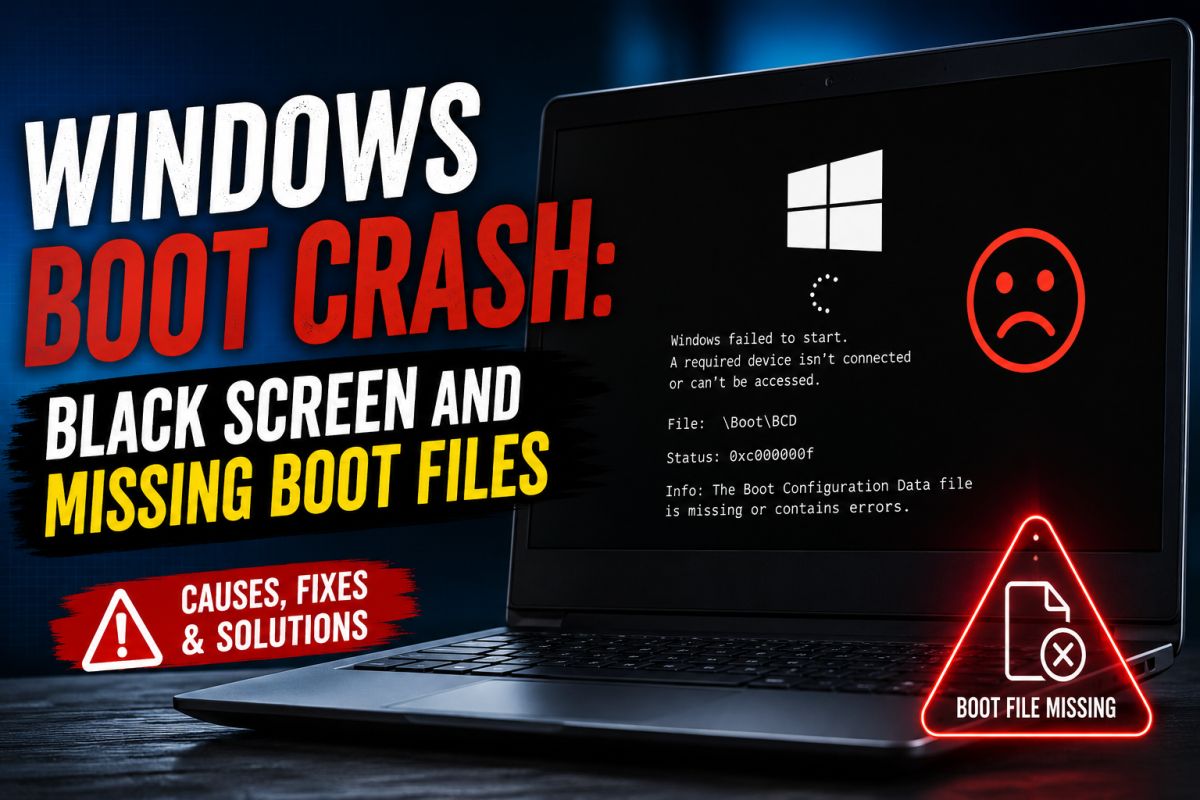
When Windows fails before the loading bar appears, the PC may show a black screen, a blinking cursor, or boot-related error messages. This guide explains common symptoms, causes, and safer recovery steps.
Symptom
The computer always crashes at startup. You never reach the Windows loading screen. You may see a black screen with a blinking cursor, or one of the messages below.
Type A messages
- Hard disk boot failure
- Invalid partition table
- Operating system not found
- Error loading operating system
- Missing operating system
- Black screen with no information
Type B messages
- NTLDR is missing or corrupted
- Ntoskrnl.exe is missing
- Ntdetect.com is missing
- BOOTMGR is missing
- NTFS.SYS is missing
- Hal.dll is missing
Common causes
Typical causes include malware, improper shutdown, bad sectors on the disk, a damaged MBR or boot sector, no active partition, or conflicts after a failed update or driver change.
What to try (in order)
More than one cause can apply. Prefer official Windows recovery tools and a trusted antivirus. Create backups when the disk is still readable.
1. Check hardware basics
- Confirm power and data cables on the system drive
- Try another SATA/USB port if applicable
- Enter BIOS/UEFI and verify the correct disk is first in the boot order
2. Use Windows Recovery / Startup Repair
Boot from official Windows installation media, open Repair your computer, then try Startup Repair.
3. Repair boot files from Command Prompt
From recovery media, open Command Prompt and run only the commands appropriate for your Windows version (examples often include bootrec /fixmbr, bootrec /fixboot, bootrec /rebuildbcd). Wrong commands on the wrong disk can make things worse.
4. Check the disk for errors
If the system can reach recovery tools, run a disk check on the Windows volume. Bad sectors can break boot files.
5. Scan for malware from a clean environment
Boot from a trusted rescue environment and scan the system drive.
6. When repair is not enough
If critical system files are gone and repair fails, back up personal data if possible and perform a repair install or clean install of Windows.
Safety notes
- Do not download random “MBR fix” executables from unknown sites
- Use official Microsoft media when possible
- On shared or customer PCs, confirm you are authorized to repair the machine
On QuickFixFile you can also find free diagnostic utilities. Always scan downloads before use.
💬 Comments (1)
💬 Leave a Comment
Good