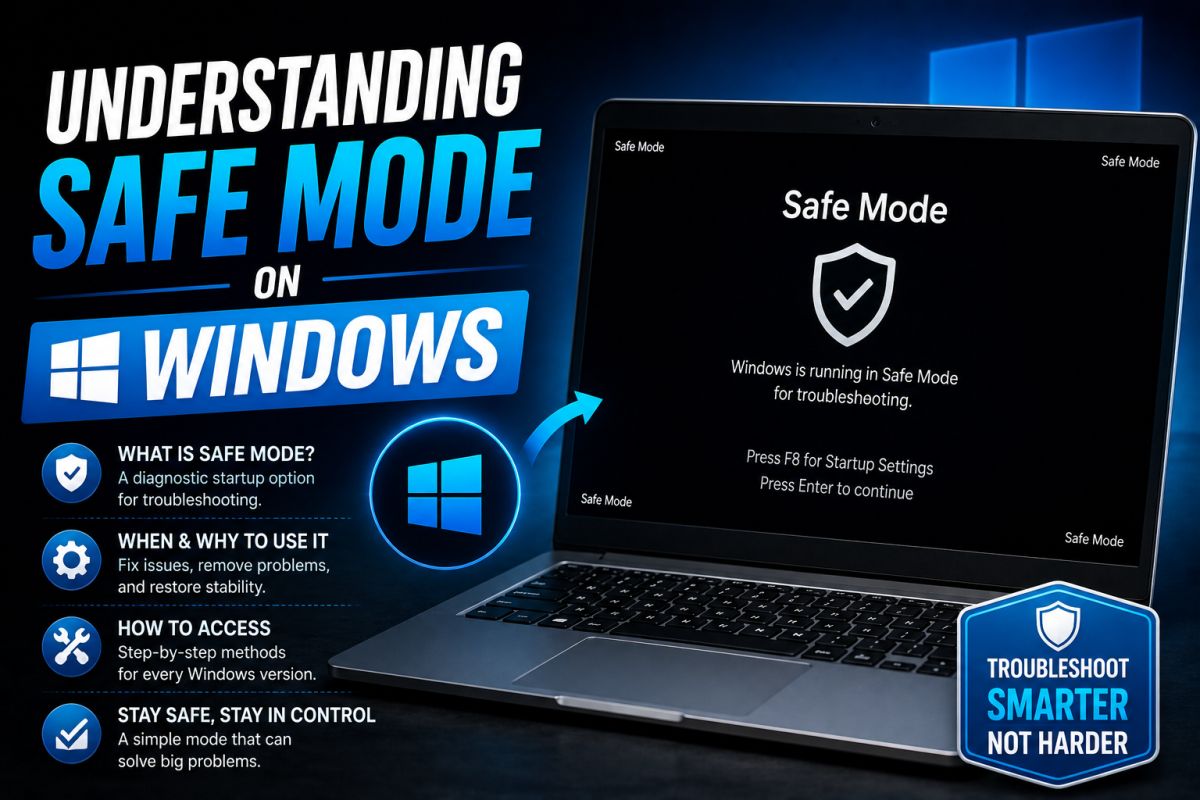
Safe Mode starts Windows with a minimal set of drivers and startup programs. It is useful when normal boot fails or malware interferes with desktop startup.
When to use it
- Windows crashes after login
- A bad driver was just installed
- Security tools cannot clean in normal mode
How to enter (Windows 10/11)
- Hold Shift while clicking Restart.
- Troubleshoot → Advanced options → Startup Settings → Restart.
- Press 4 or 5 for Safe Mode / Safe Mode with Networking.
What you can do there
- Uninstall a recent driver or update
- Run offline scans
- Delete stubborn startup entries
- Use System Restore
If Safe Mode also fails, prepare recovery media or check hardware (disk, RAM).
💬 Comments (0)
💬 Leave a Comment
No comments yet. Be the first to comment!