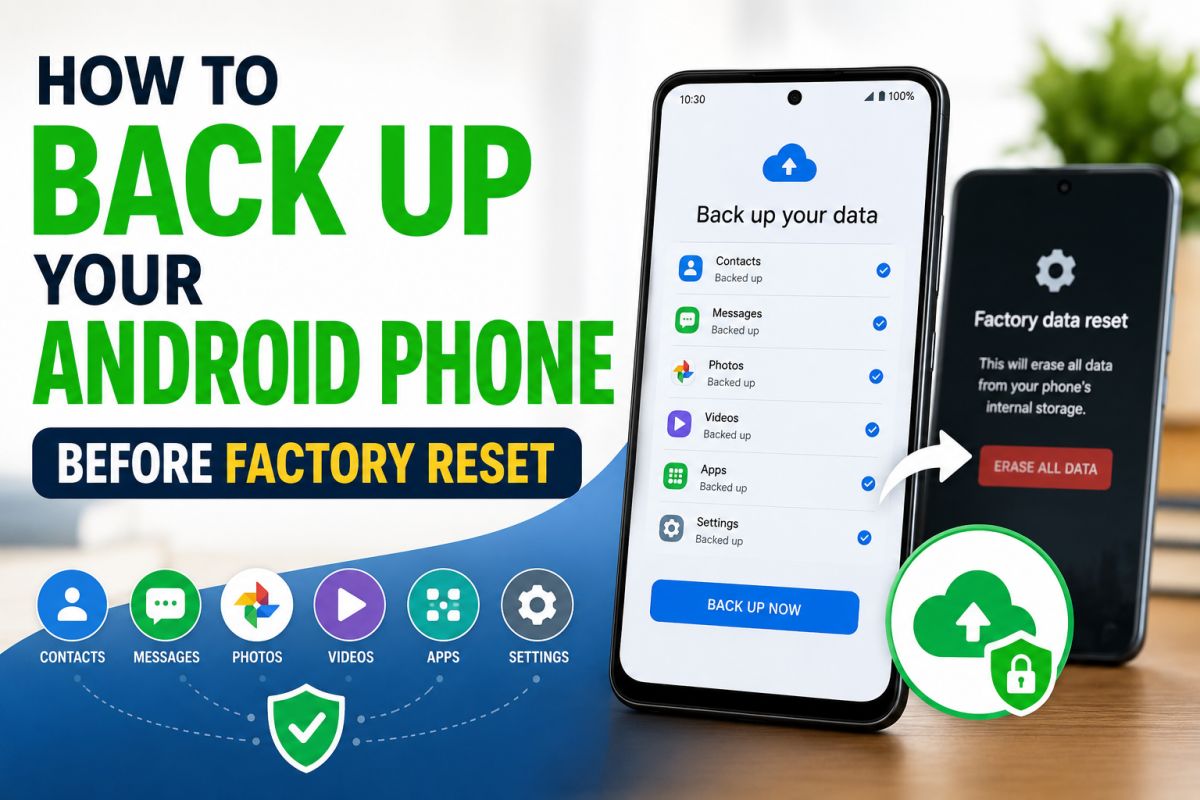
Factory reset is useful for selling a phone, fixing serious software issues, or removing a stuck account — but it erases user data. Backup first.
1. What you should back up
- Contacts
- Photos and videos
- WhatsApp chats (separate backup)
- Documents and downloads
- Notes and important app data
- SIM / eSIM and account emails (write them down)
2. Google backup (basic and free)
- Settings → Google → Backup (or Settings → System → Backup)
- Turn on Backup
- Include: Drive backup, photos (via Google Photos), contacts
- Tap Back up now
Use a stable Wi‑Fi connection. Confirm the last backup time before resetting.
3. Photos and videos
Google Photos: back up device folders, then verify they appear in the cloud. For a second copy, connect the phone to a PC and copy DCIM and Pictures folders.
4. WhatsApp
- WhatsApp → Settings → Chats → Chat backup
- Back up to Google Drive
- Wait until it finishes (large chat histories take time)
Without this step, chats will not restore after reset.
5. Contacts
Save contacts to Google account, not “Phone only.” Export a VCF file from Contacts app as an extra copy.
6. After reset
- Power on and choose Wi‑Fi
- Sign in with the same Google account
- Restore from backup when asked
- Reinstall WhatsApp and restore chat backup
FRP warning
After reset, Android asks for the previous Google account (Factory Reset Protection). You must know that email and password. Backup does not remove this security feature.
Summary: Google backup + Photos + WhatsApp Drive backup + copy important files to a PC. Only then run factory reset from Settings → System → Reset options.
💬 Comments (0)
💬 Leave a Comment
No comments yet. Be the first to comment!