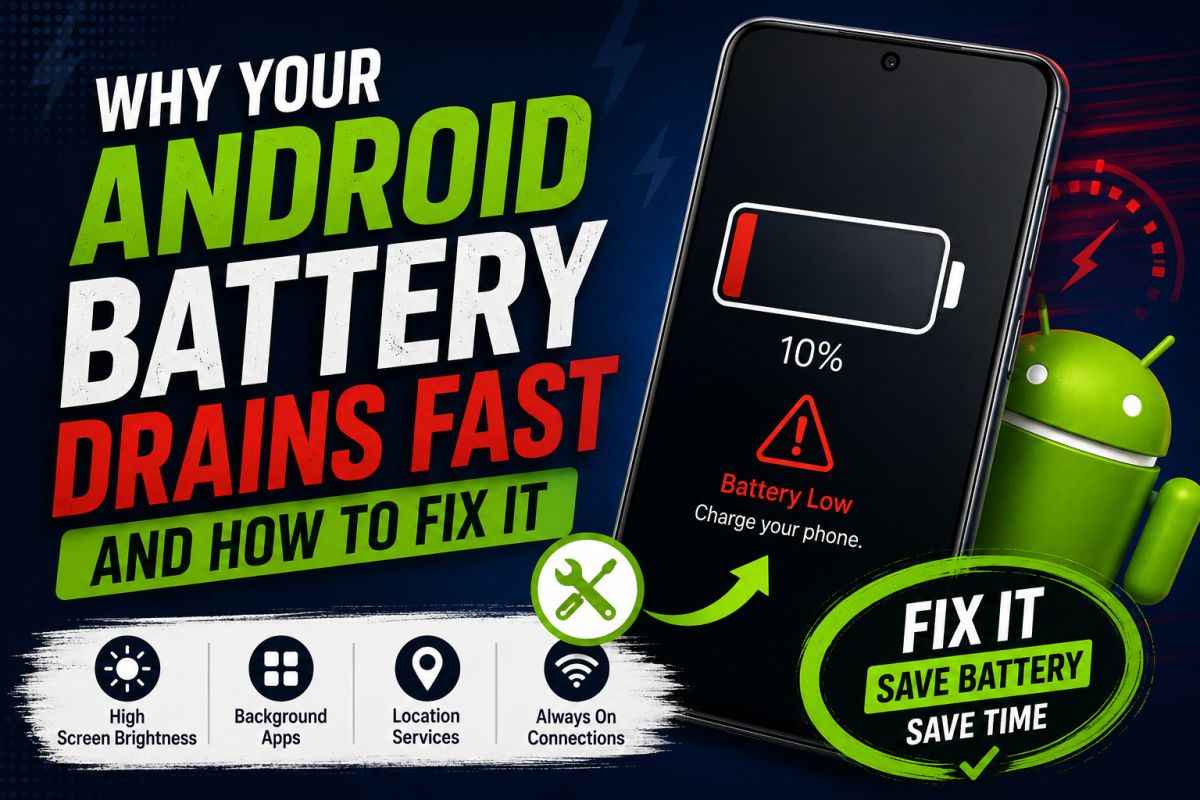
If your phone dies by midday, the battery is not always “dead.” Software and settings often waste power. Work through this list before buying a replacement.
1. Check battery usage
Settings → Battery → Battery usage (names vary by brand). Note the top apps. If one app uses far more than others, that is your first target.
2. Screen brightness and timeout
- Use Auto brightness or lower manual brightness
- Set screen timeout to 30–60 seconds
- Dark theme helps on AMOLED screens
3. Mobile data, Wi‑Fi, GPS, Bluetooth
Leave GPS and Bluetooth off when you do not need them. In areas with weak signal, the phone boosts radio power and drains battery — Wi‑Fi calling or Wi‑Fi use can help when available.
4. Background apps
- Settings → Apps → [App] → Battery
- Restrict background activity for apps that do not need live updates
Do not restrict core apps (Phone, Messages, your main chat app) if you need reliable notifications.
5. Outdated apps and system
Play Store → Manage apps → Update all. Also install system updates: Settings → System → System update. Updates often include battery fixes.
6. Safe Mode test
Boot into Safe Mode (hold power, then long‑press Power off → Safe mode on many phones). If battery life improves a lot, a third‑party app is likely the cause. Uninstall recent apps one by one after normal reboot.
7. Charging habits
- Avoid extreme heat while charging
- Use a quality charger
- You do not need to always drain to 0% or stop at exactly 80% — modern phones handle lithium batteries well
When the battery itself is weak
After 2–3 years, capacity drops. If usage looks normal but the phone still dies quickly, a battery health check or authorized service is reasonable.
Summary: Read battery usage → fix brightness and radios → restrict heavy background apps → update software → test Safe Mode. Most “bad battery” cases improve without replacing the phone.
💬 Comments (0)
💬 Leave a Comment
No comments yet. Be the first to comment!