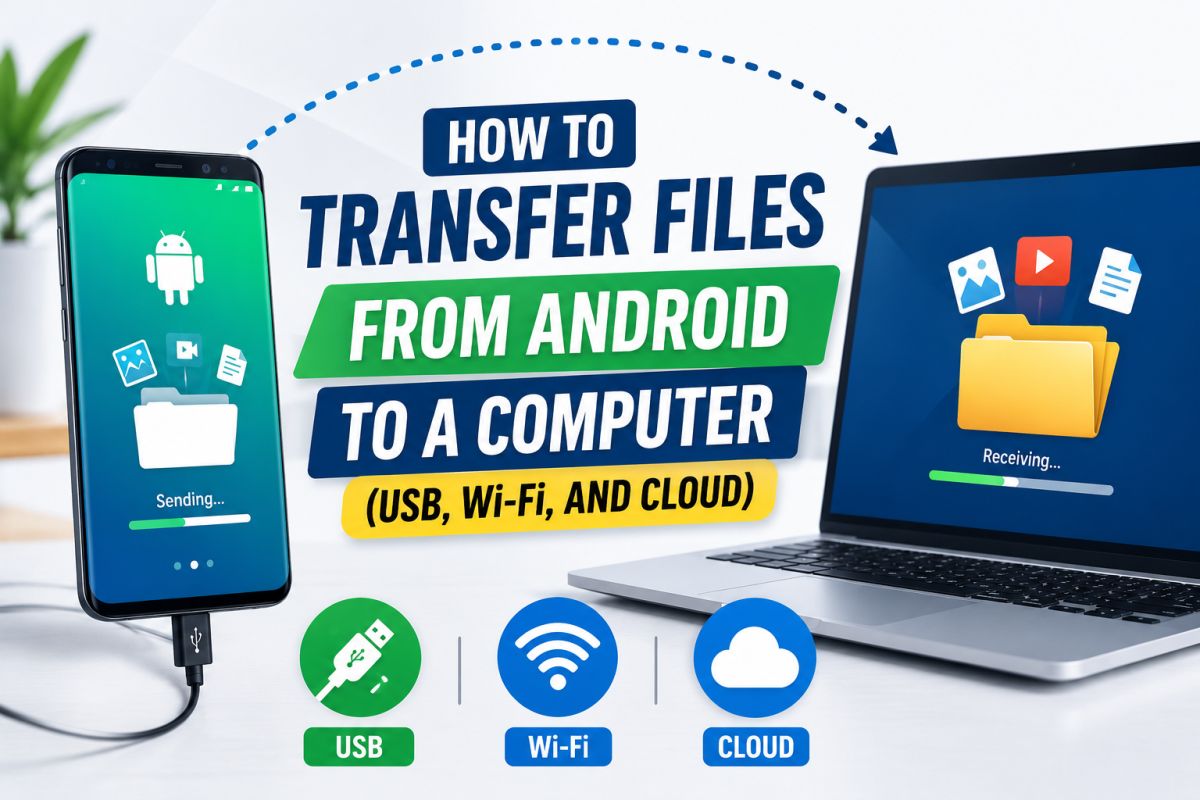
Transferring files from Android to a computer is simple when you pick the right method. Use this guide for photos, documents, videos, and downloads.
1. USB cable (most reliable)
- Use a data cable (some cables only charge)
- Unlock the phone and plug into the PC
- On the phone, open the USB notification → choose File transfer / MTP
- On Windows, open This PC → your phone → Internal storage or SD card
- Copy folders such as DCIM, Download, Documents
If the PC does not see the phone, try another cable/port, or install the OEM USB driver (Samsung, Xiaomi, etc.).
2. Wireless options
- Nearby Share / Quick Share (Android to Android or supported PC tools)
- FTP apps or manufacturer tools (Find My Device suites vary)
- Web file managers on the same Wi‑Fi (only from trusted apps)
Avoid unknown “transfer APKs” from random websites.
3. Cloud (easy, needs internet)
- Upload from the phone to Google Drive / Photos
- On the PC, open drive.google.com or Photos and download
Best for smaller sets of files. Large video libraries are faster over USB.
4. What to copy before a reset or sale
- DCIM and Pictures
- Download folder
- WhatsApp Media (if needed)
- Documents and important PDFs
Safety tips
- Eject/safely remove after copying
- Scan downloaded APKs only from official sources
- Do not install PC “driver packs” from ads or popups
Summary: For large folders use USB + MTP. For a few files use Drive or Photos. Always unlock the phone and select File transfer when using a cable.
💬 Comments (0)
💬 Leave a Comment
No comments yet. Be the first to comment!